> ## Documentation Index
> Fetch the complete documentation index at: https://docs.tryrisotto.com/llms.txt
> Use this file to discover all available pages before exploring further.
# Workday
> Connect Workday as your HRIS to power employee self-service
Connect Workday as your HRIS to power employee self-service. Once connected, Risotto can look up employee information, retrieve PTO balances, and more. These actions are controlled by the [People Actions](/dashboard/settings/people/actions) settings.
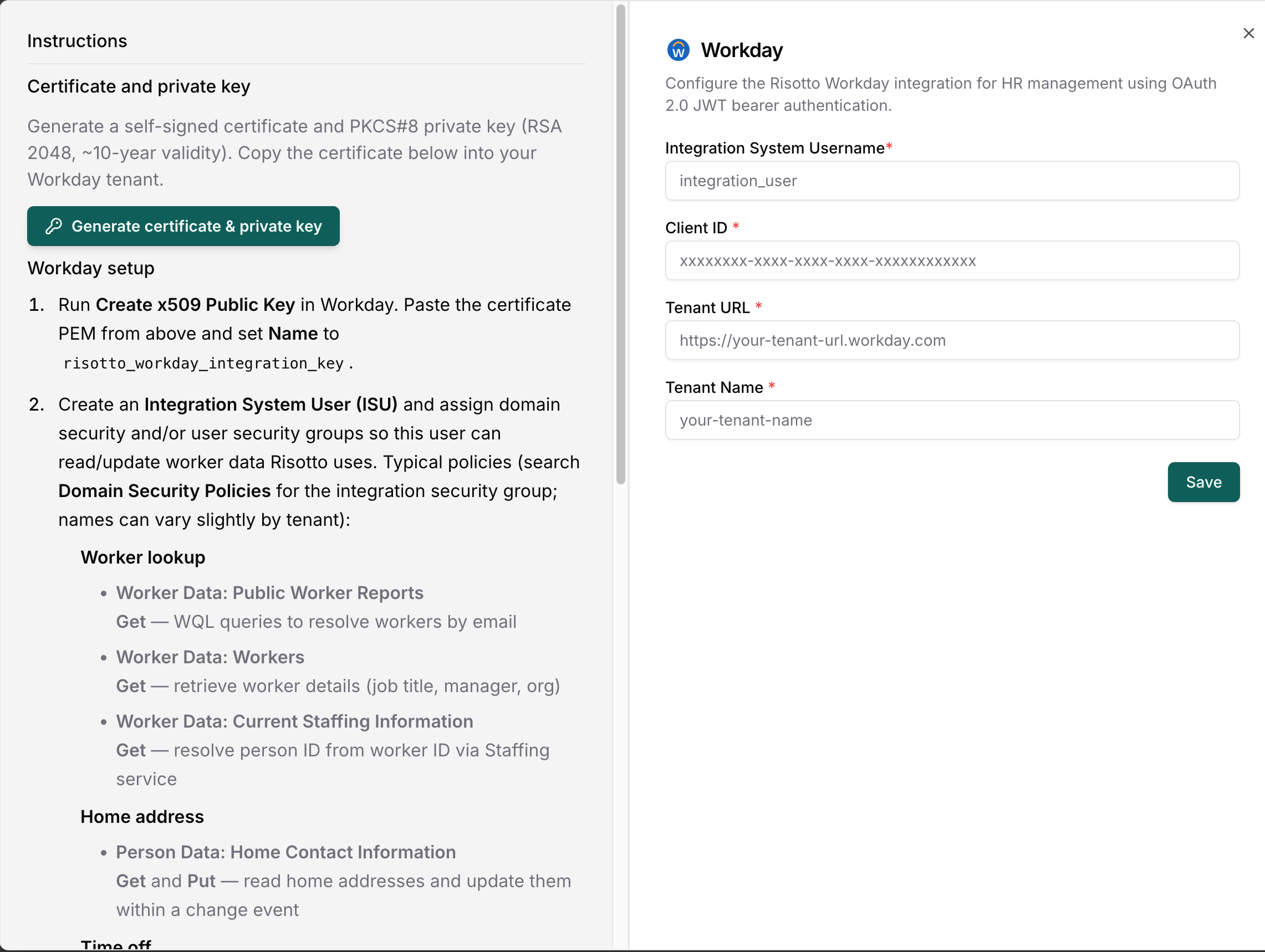 ## Required Information
To connect Workday, provide:
* **Tenant URL**: Your Workday tenant URL
* **Tenant Name**: The name of your Workday tenant
* **Client ID**: The API client ID
* **ISU Username**: The Integration System User account Risotto will authenticate as
* **X.509 Public Key**: Generated from the Risotto dashboard and uploaded to Workday
## ISU Security Configuration
The ISU must have domain security in Workday, and the API client must have matching functional area scopes. Without these, Risotto cannot read or write the corresponding worker data, even if the action is toggled on in the dashboard.
### Domain Security Policies
Assign these to the ISU's integration security group. Domain names can vary slightly by tenant, search **Domain Security Policies** in Workday for the closest match.
**Worker lookup**
| Domain | Permission | Purpose |
| ----------------------------------------- | ---------- | ----------------------------------------------------- |
| Worker Data: Public Worker Reports | Get | WQL queries to resolve workers by email |
| Worker Data: Workers | Get | Retrieve worker details (job title, manager, org) |
| Worker Data: Current Staffing Information | Get | Resolve person ID from worker ID via Staffing service |
| Worker Data: All Positions | Get | Current and historical position details |
| Staffing | Get | General staffing service access |
| System: Workday Query Language | Get | Execute WQL queries |
| System: Worker Event History | Get | Read worker event history |
**Personal data**
| Domain | Permission | Purpose |
| --------------------------------- | ---------- | ------------------------------- |
| Person Data: Personal Data | Get | Get personal data |
| Person Data: Personal Information | Get | Get personal information fields |
**Home address**
| Domain | Permission | Purpose |
| ------------------------------------- | ----------- | ------------------------------------------------------------------------------------------ |
| Person Data: Home Contact Information | Get and Put | Read home addresses and update them within a change event |
| Person Data: Home Address | Get and Put | Secures *Change Home Contact Information (REST Service)* |
| Self-Service: Home Address | Get and Put | Secures *Change Home Contact Information (REST Service)* initiated on behalf of the worker |
| Person Data: Work Contact Information | Get | Read work contact information |
**Time off and absence**
| Domain | Permission | Purpose |
| ----------------------------------------- | ----------- | -------------------------------------------------------------------------------- |
| Worker Data: Time Off | Get and Put | PTO balances, time off entries, eligible types, and submitting time off requests |
| Absence Management | Get and Put | Absence management operations |
| Worker Data: Absence Balances | Get | Retrieve PTO balances |
| Self-Service: Time Off and Leave Balances | Get | Retrieve time off and leave balances |
### API Client Scopes
When you register the API client in Workday, grant these functional areas:
* **Staffing**: worker lookup, initiate home contact information changes
* **Personal Data**: read personal information
* **Contact Information**: read and update home addresses
* **Time Off and Leave**: PTO balances, time off entries, eligible types, and time off requests
* **Absence Management**: PTO balances and time off requests
* **System**: WQL support and REST API routing
* **Tenant Non-configurable**: global scope required for WQL and People resources
Note: Once these security domains and API scopes have been updated, run the
**Activate Pending Security Policy Changes** task to ensure changes are
applied.
## Required Information
To connect Workday, provide:
* **Tenant URL**: Your Workday tenant URL
* **Tenant Name**: The name of your Workday tenant
* **Client ID**: The API client ID
* **ISU Username**: The Integration System User account Risotto will authenticate as
* **X.509 Public Key**: Generated from the Risotto dashboard and uploaded to Workday
## ISU Security Configuration
The ISU must have domain security in Workday, and the API client must have matching functional area scopes. Without these, Risotto cannot read or write the corresponding worker data, even if the action is toggled on in the dashboard.
### Domain Security Policies
Assign these to the ISU's integration security group. Domain names can vary slightly by tenant, search **Domain Security Policies** in Workday for the closest match.
**Worker lookup**
| Domain | Permission | Purpose |
| ----------------------------------------- | ---------- | ----------------------------------------------------- |
| Worker Data: Public Worker Reports | Get | WQL queries to resolve workers by email |
| Worker Data: Workers | Get | Retrieve worker details (job title, manager, org) |
| Worker Data: Current Staffing Information | Get | Resolve person ID from worker ID via Staffing service |
| Worker Data: All Positions | Get | Current and historical position details |
| Staffing | Get | General staffing service access |
| System: Workday Query Language | Get | Execute WQL queries |
| System: Worker Event History | Get | Read worker event history |
**Personal data**
| Domain | Permission | Purpose |
| --------------------------------- | ---------- | ------------------------------- |
| Person Data: Personal Data | Get | Get personal data |
| Person Data: Personal Information | Get | Get personal information fields |
**Home address**
| Domain | Permission | Purpose |
| ------------------------------------- | ----------- | ------------------------------------------------------------------------------------------ |
| Person Data: Home Contact Information | Get and Put | Read home addresses and update them within a change event |
| Person Data: Home Address | Get and Put | Secures *Change Home Contact Information (REST Service)* |
| Self-Service: Home Address | Get and Put | Secures *Change Home Contact Information (REST Service)* initiated on behalf of the worker |
| Person Data: Work Contact Information | Get | Read work contact information |
**Time off and absence**
| Domain | Permission | Purpose |
| ----------------------------------------- | ----------- | -------------------------------------------------------------------------------- |
| Worker Data: Time Off | Get and Put | PTO balances, time off entries, eligible types, and submitting time off requests |
| Absence Management | Get and Put | Absence management operations |
| Worker Data: Absence Balances | Get | Retrieve PTO balances |
| Self-Service: Time Off and Leave Balances | Get | Retrieve time off and leave balances |
### API Client Scopes
When you register the API client in Workday, grant these functional areas:
* **Staffing**: worker lookup, initiate home contact information changes
* **Personal Data**: read personal information
* **Contact Information**: read and update home addresses
* **Time Off and Leave**: PTO balances, time off entries, eligible types, and time off requests
* **Absence Management**: PTO balances and time off requests
* **System**: WQL support and REST API routing
* **Tenant Non-configurable**: global scope required for WQL and People resources
Note: Once these security domains and API scopes have been updated, run the
**Activate Pending Security Policy Changes** task to ensure changes are
applied.